> ## Documentation Index
> Fetch the complete documentation index at: https://help.oskaros.com/llms.txt
> Use this file to discover all available pages before exploring further.
# Resources
> Set up resources like staff or spaces for client bookings.
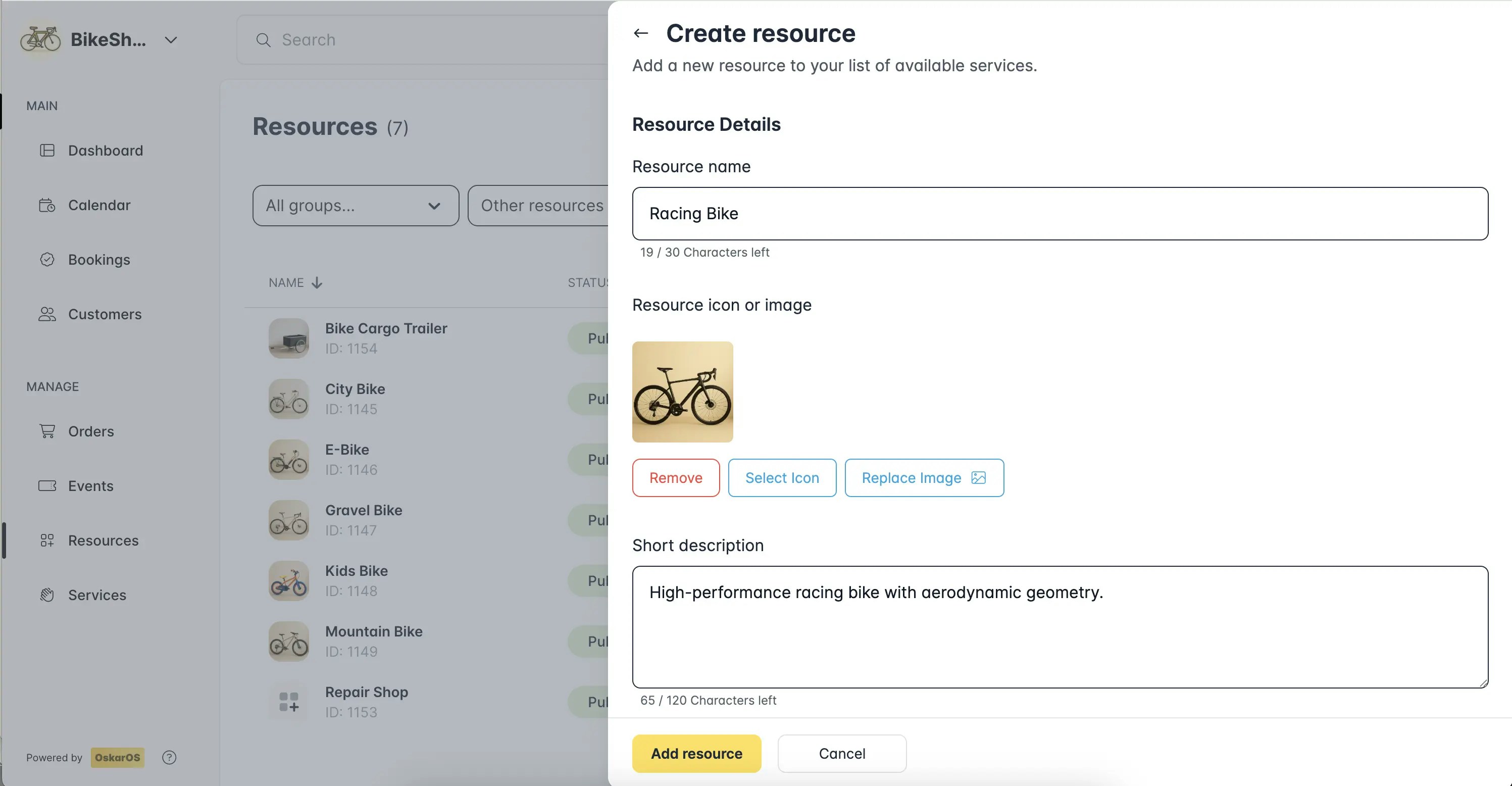 Resources are the “who” or “what” clients book, like staff (e.g., “Barber Joe”), spaces (e.g., “Lecture Hall A”), or equipment (e.g., a surfboard). In [****Left Menu > MANAGE > Resources >****](https://app.oskaros.com/dashboard/resources) + Add Resource:
* Name the resource and choose a type (staff or object).
* Set availability (e.g., Mon–Fri, 9 AM–5 PM).
* Add a short description (e.g., “Joe, our stylist”) and extended one (e.g., “Joe’s a fade expert”) for client trust.
* Link your resource to a service to become bookable.
Group resources (e.g., “Meeting Rooms”) found in **Basic Information** of your resource. Ensure availability is set in **Schedule & Availability**, or bookings won’t work. If services aren’t showing, check **Linked Services** menu in your resource. ***Puzzled?*** [Drop us a note.](https://www.oskaros.com/contact)
**Pro tip:** Need to manage identical resources: [We've got sub-resources for you](https://help.oskaros.com/guides/deep-dives-and-how-tos/sub-resources#sub-resources).
Resources are the “who” or “what” clients book, like staff (e.g., “Barber Joe”), spaces (e.g., “Lecture Hall A”), or equipment (e.g., a surfboard). In [****Left Menu > MANAGE > Resources >****](https://app.oskaros.com/dashboard/resources) + Add Resource:
* Name the resource and choose a type (staff or object).
* Set availability (e.g., Mon–Fri, 9 AM–5 PM).
* Add a short description (e.g., “Joe, our stylist”) and extended one (e.g., “Joe’s a fade expert”) for client trust.
* Link your resource to a service to become bookable.
Group resources (e.g., “Meeting Rooms”) found in **Basic Information** of your resource. Ensure availability is set in **Schedule & Availability**, or bookings won’t work. If services aren’t showing, check **Linked Services** menu in your resource. ***Puzzled?*** [Drop us a note.](https://www.oskaros.com/contact)
**Pro tip:** Need to manage identical resources: [We've got sub-resources for you](https://help.oskaros.com/guides/deep-dives-and-how-tos/sub-resources#sub-resources).