> ## Documentation Index
> Fetch the complete documentation index at: https://help.oskaros.com/llms.txt
> Use this file to discover all available pages before exploring further.
# Quickstart Setup
> Set up your account and Booking Page to go live in minutes.
**Run your business on autopilot with Oskar.**\
This guide gets you live in minutes through a simple chat with Oskar, your AI-powered assistant.
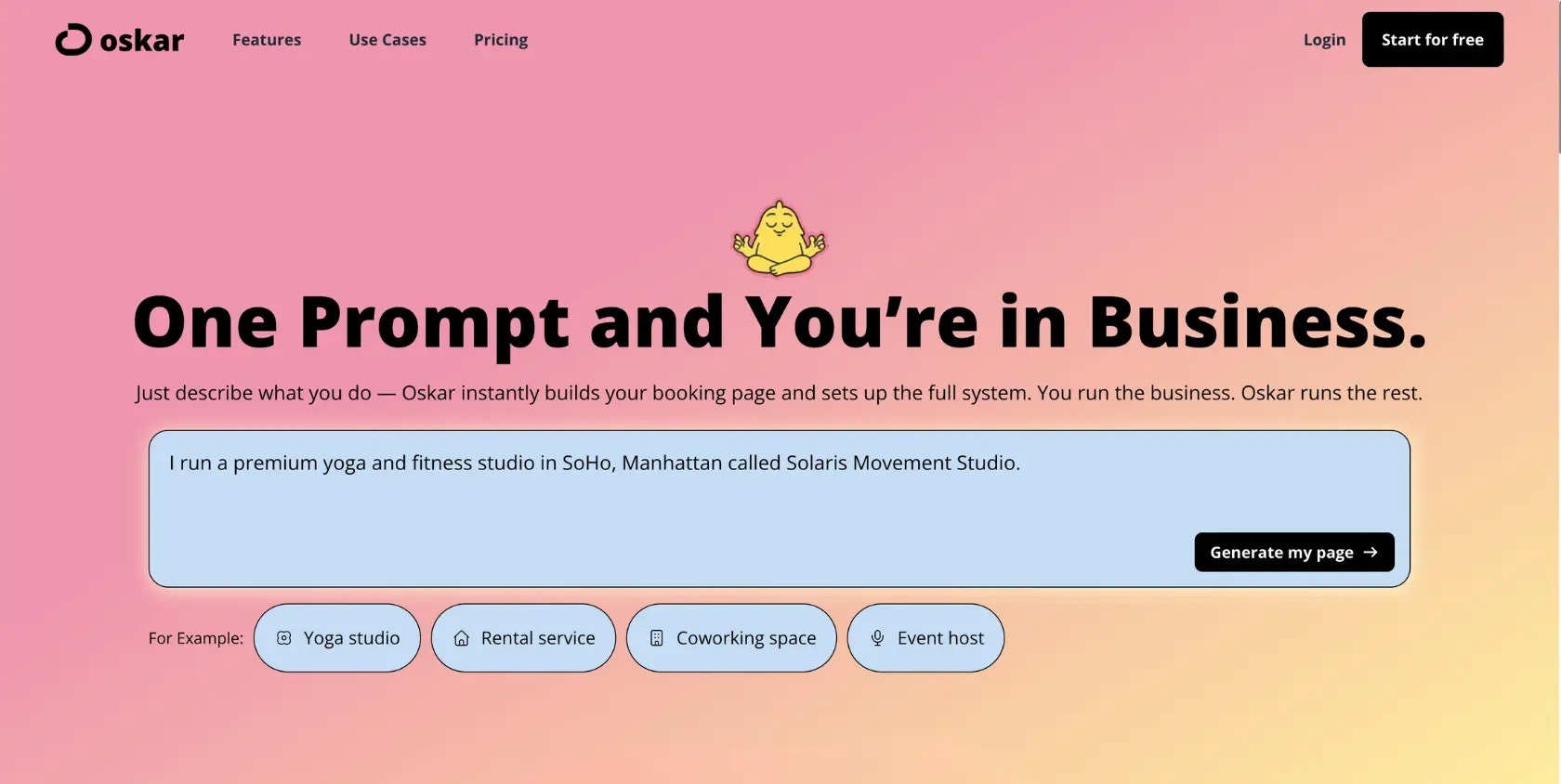
Describe your business in plain language—what you offer, who can book, and any special rules—and Oskar builds your booking system. No coding. No complex menus. Just a clean flow that turns your words into a fully functioning Booking Page.
 ***
## Step 1: Chat
Start a chat at **oskaros.com**. Tell Oskar what you offer—staff (“Barber Jane”), rooms (“Conference Room A”), services (“30-Minute Haircut”), events (“Sunday Yoga Flow”), availability, pricing, and rules.
Oskar fills in missing details with smart follow-up questions:
* “How long is the haircut?”
* “When is Jane available?”
* “Should clients choose a room or be auto-assigned?”
You can skip details you don’t know yet. Oskar keeps the system functional and lets you refine later via:
* **Left Menu → MANAGE → Resources**
* **Left Menu → MANAGE → Services**
Continue using the AI for post-setup help—see\
**[AI Documentation Assistant](/documentation/setup-and-configuration/what-is-oskaros#ai-documentation-assistant)**.
No technical skills needed. Oskar structures everything for you.
***
## Step 2: Preview
As you chat, Oskar generates a **live Booking Page preview**—exactly how clients will see it.
You can adjust anything directly in the chat:
* “Rename Yoga Flow to Morning Vinyasa”
* “Group my rooms together”
* “Show services first instead of resources”
The preview updates instantly.
Prefer manual tweaks? Use\
**Organization Menu → Customize Booking Page**.
***
## Step 3: Confirm
Click **“Proceed with this setup”** to finalize the configuration.\
Oskar will ask for your:
* Business name
* Logo
* Contact details
* Address and Tax ID (optional)
* **Sign-in method**: Choose email/password, Google, or Microsoft\
(see **[Security & Authentication](/documentation/setup-and-configuration/locations#security-authentication)** for SSO setup)
These details brand your Booking Page and ensure professional communication.
***
## Step 4: Fine-tune
In your dashboard, refine advanced settings:
* Availability (e.g., Mon–Fri, 9–17h)
* Booking limits (single vs. shared)
* Buffers (setup, cleaning, travel)
* Maintenance or blocked times
* Pricing variants and add-ons
You can update these via:
* **Left Menu → MANAGE → Resources**
* **Left Menu → MANAGE → Services**
Or simply continue chatting with Oskar and let the assistant update fields for you.
Activate the\
**[Interactive Dashboard Tour](/documentation/setup-and-configuration/what-is-oskaros#onboarding-dashboard-tour)**\
for visual walkthroughs of these settings.
***
## Step 5: Share & Go Live
Your Booking Page is ready.
Share it using:
* Direct link
* QR code
* Website embed
Find everything under:\
**Organization Menu → View Booking Page**
Clients can book instantly. You can update rules or track activity anytime through the dashboard or chat.
#### Sign-In Options Quick Start
| Method | Benefits | Setup |
| ------------- | --------------------------------------- | ------------------------------------------------------------------ |
| Microsoft SSO | One-click with Office 365; secure OAuth | Login page → “Sign in with Microsoft”; link in Settings → Security |
| Google SSO | Fast, widely supported, secure OAuth | Login page → “Sign in with Google”; link in Settings → Security |
***
## Need help?
Book a personal onboarding session:\
**[https://www.oskaros.com/support](https://www.oskaros.com/support)**
***
## Explore Use Case Templates
Not sure how to structure resources, services, or events?\
Browse our Use Case Templates for real-world examples:
👉 **[https://help.oskaros.com/guides/use-case-templates/intro](https://help.oskaros.com/guides/use-case-templates/intro)**
***
## Step 1: Chat
Start a chat at **oskaros.com**. Tell Oskar what you offer—staff (“Barber Jane”), rooms (“Conference Room A”), services (“30-Minute Haircut”), events (“Sunday Yoga Flow”), availability, pricing, and rules.
Oskar fills in missing details with smart follow-up questions:
* “How long is the haircut?”
* “When is Jane available?”
* “Should clients choose a room or be auto-assigned?”
You can skip details you don’t know yet. Oskar keeps the system functional and lets you refine later via:
* **Left Menu → MANAGE → Resources**
* **Left Menu → MANAGE → Services**
Continue using the AI for post-setup help—see\
**[AI Documentation Assistant](/documentation/setup-and-configuration/what-is-oskaros#ai-documentation-assistant)**.
No technical skills needed. Oskar structures everything for you.
***
## Step 2: Preview
As you chat, Oskar generates a **live Booking Page preview**—exactly how clients will see it.
You can adjust anything directly in the chat:
* “Rename Yoga Flow to Morning Vinyasa”
* “Group my rooms together”
* “Show services first instead of resources”
The preview updates instantly.
Prefer manual tweaks? Use\
**Organization Menu → Customize Booking Page**.
***
## Step 3: Confirm
Click **“Proceed with this setup”** to finalize the configuration.\
Oskar will ask for your:
* Business name
* Logo
* Contact details
* Address and Tax ID (optional)
* **Sign-in method**: Choose email/password, Google, or Microsoft\
(see **[Security & Authentication](/documentation/setup-and-configuration/locations#security-authentication)** for SSO setup)
These details brand your Booking Page and ensure professional communication.
***
## Step 4: Fine-tune
In your dashboard, refine advanced settings:
* Availability (e.g., Mon–Fri, 9–17h)
* Booking limits (single vs. shared)
* Buffers (setup, cleaning, travel)
* Maintenance or blocked times
* Pricing variants and add-ons
You can update these via:
* **Left Menu → MANAGE → Resources**
* **Left Menu → MANAGE → Services**
Or simply continue chatting with Oskar and let the assistant update fields for you.
Activate the\
**[Interactive Dashboard Tour](/documentation/setup-and-configuration/what-is-oskaros#onboarding-dashboard-tour)**\
for visual walkthroughs of these settings.
***
## Step 5: Share & Go Live
Your Booking Page is ready.
Share it using:
* Direct link
* QR code
* Website embed
Find everything under:\
**Organization Menu → View Booking Page**
Clients can book instantly. You can update rules or track activity anytime through the dashboard or chat.
#### Sign-In Options Quick Start
| Method | Benefits | Setup |
| ------------- | --------------------------------------- | ------------------------------------------------------------------ |
| Microsoft SSO | One-click with Office 365; secure OAuth | Login page → “Sign in with Microsoft”; link in Settings → Security |
| Google SSO | Fast, widely supported, secure OAuth | Login page → “Sign in with Google”; link in Settings → Security |
***
## Need help?
Book a personal onboarding session:\
**[https://www.oskaros.com/support](https://www.oskaros.com/support)**
***
## Explore Use Case Templates
Not sure how to structure resources, services, or events?\
Browse our Use Case Templates for real-world examples:
👉 **[https://help.oskaros.com/guides/use-case-templates/intro](https://help.oskaros.com/guides/use-case-templates/intro)**