> ## Documentation Index
> Fetch the complete documentation index at: https://help.oskaros.com/llms.txt
> Use this file to discover all available pages before exploring further.
# Events & Courses
> Schedule group sessions with fixed times, clear capacity, and powerful waitlist options.
Events are **fixed-time group sessions** with limited spots — perfect for classes, workshops, retreats, tours, or recurring courses.\
You can create and manage them under:\
**Left Menu → MANAGE → Events**
***
## Create an Event
Click **+ Add Event** to set up your session. You’ll configure:
### **1. Name**
Give your event a clear, recognizable title.\
Examples: *“Yoga Flow”*, *“Beginner Photography Workshop”*, *“Intro to Tennis”*
### **2. Icon or Image**
Add a visual to help clients quickly recognize your event.
### **3. Description**
Explain what the event is about (up to 500 characters).\
Examples: *“Beginner-friendly. Bring your own mat.”*
### **4. Pricing**
Choose between:
* **Single-price events** (e.g., 20 spots at \$15)
* **Tiered ticketing** (e.g., *VIP $25*, *General $15*)\
Set price to **\$0** for free events.
### **5. Resources**
Assign who or what runs the event:
* Instructor or staff member
* Room or studio space
* Equipment (optional)
Use **Advanced Settings → Organizer Field** to display labels like **“Led by Anna”** on the Booking Page.\
Read more: [Organizer Field](https://help.oskaros.com/guides/deep-dives-and-how-tos/organizer-field)
### **6. Location**
Add a physical address or a digital link (Zoom, Google Meet, etc.).
### **7. Dates**
Add a single date or up to **100 recurring dates** for classes and repeating sessions.
### **8. Advanced Settings**
* Enable or disable instant booking
* Add organizer labels
* Customize visibility and order
### **9. Payments**
Toggle Stripe payments on/off or keep the event free.
### **10. Visibility on Booking Page**
Review visibility under:\
**Top Left Menu → Customize Booking Page → Events**
***
## Waitlist Management
Never lose potential clients when events sell out.\
Enable waitlists to let clients **queue instead of hitting a dead end**.
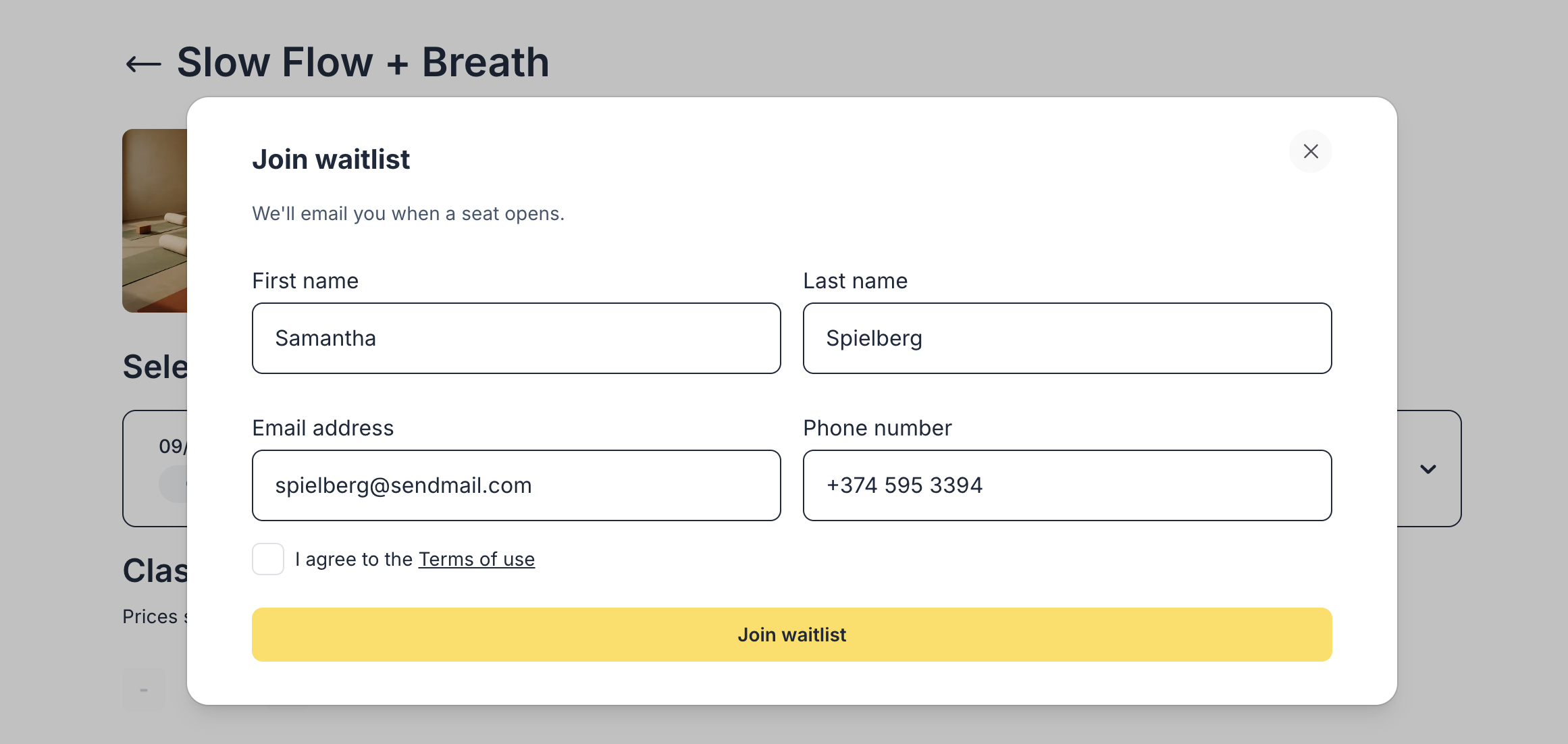 ### **How to Enable the Waitlist**
Go to:\
**Left Menu → MANAGE → Events → \[Your Event] → Payment & Checkout**\
Toggle **Enable Waitlist**.
### Options You Can Configure
* **Waitlist capacity**\
Set the number of people who can queue (use **0** for unlimited).
* **Auto-offer from waitlist**\
When a spot opens:
* Oskar automatically sends a **claim link**
* First in line receives first offer (FIFO)
* Each client gets **12 hours** of exclusive access to book before the spot goes public again
If auto-offer is turned **off**, you can manually:
* Issue claim links
* Resend them
* Expire them
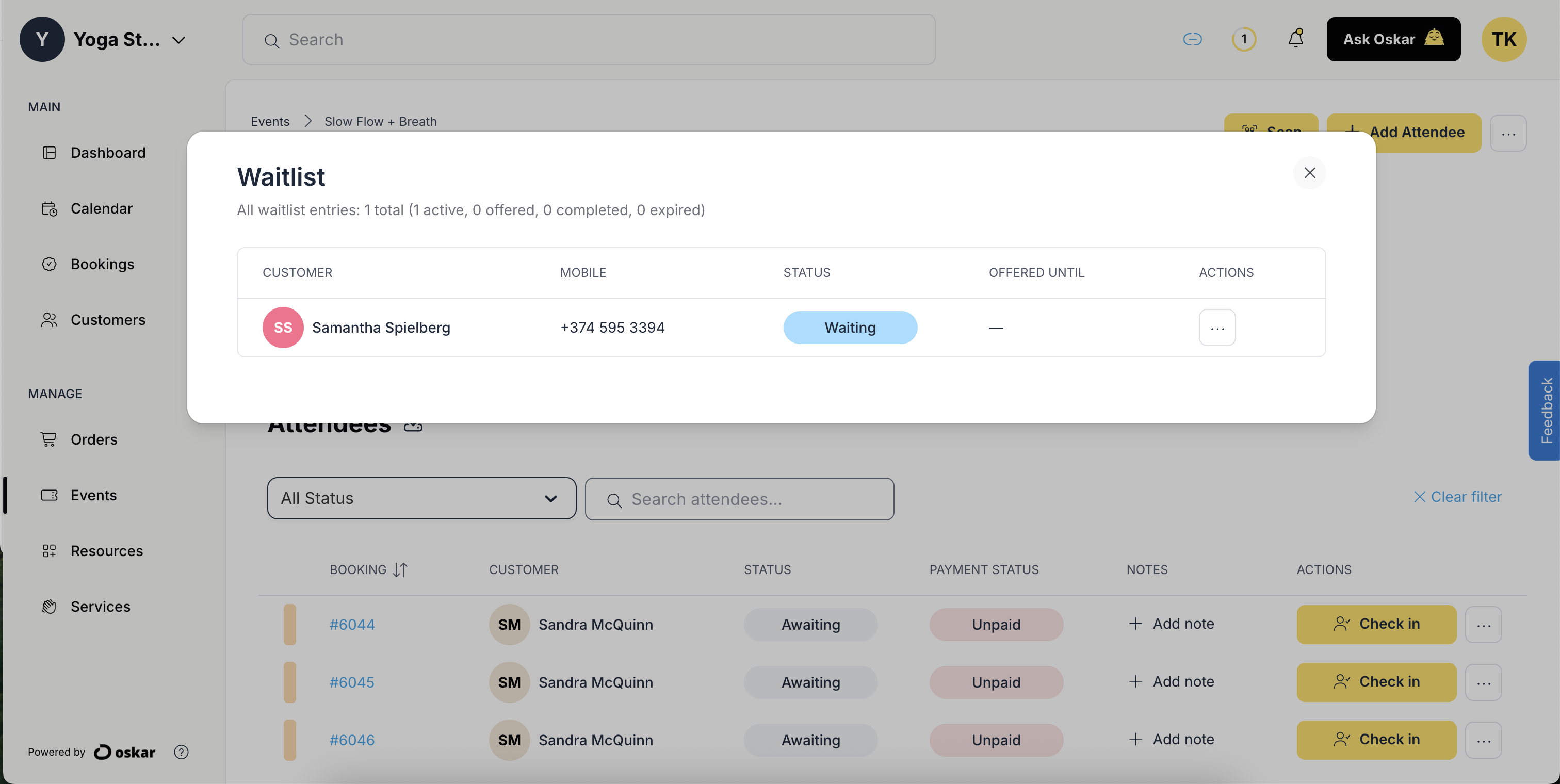
### Admin View: Managing the Waitlist
Open your event or any specific occurrence.\
At the top, in the **Booked Slots** panel, click **Waitlist** to view or manage all queued clients.
### **How to Enable the Waitlist**
Go to:\
**Left Menu → MANAGE → Events → \[Your Event] → Payment & Checkout**\
Toggle **Enable Waitlist**.
### Options You Can Configure
* **Waitlist capacity**\
Set the number of people who can queue (use **0** for unlimited).
* **Auto-offer from waitlist**\
When a spot opens:
* Oskar automatically sends a **claim link**
* First in line receives first offer (FIFO)
* Each client gets **12 hours** of exclusive access to book before the spot goes public again
If auto-offer is turned **off**, you can manually:
* Issue claim links
* Resend them
* Expire them
### Admin View: Managing the Waitlist
Open your event or any specific occurrence.\
At the top, in the **Booked Slots** panel, click **Waitlist** to view or manage all queued clients.
 ***
### **Checkpoint**
✔ Waitlist enabled?\
Then clients always have a path forward — even when your event is full.
***
## Improved Event Management
Enhanced tools for large series and history.
### Series-Level Pagination
Navigate long recurring series (e.g., 100+ dates) with clear page counts and navigation jumps.
#### Quick Start
| Feature | Use | Path |
| ---------- | ---------------------------------------------- | --------------------------------- |
| Pagination | Jump between date blocks (e.g., 1–50 / 51–100) | Events list → Page controls |
| Counts | View total number of occurrences | Series header (e.g., “75 of 100”) |
### Cumulative Past Events Pagination
Review historical classes or sessions efficiently with date-range based pagination — prevents slow loading when you have years of history.
### Enhanced Deletion
* **Safe logic**: Prevents deleting events with future bookings or approved payments.
* **Granular options**: Delete **single occurrence**, **all future events**, or **entire series**.
* **Confirm prompts** ensure no accidental data loss.
### Timezone-Accurate Date Picker
Ideal for global teams. Automatically detects and applies the timezone of the assigned resource or organizer.
#### Tips for Large Series
* Use **bulk edit** at the series root to update all future dates.
* Archive past dates using filters to keep your dashboard clean.
* For multi-week or repeating programs, see\
**[Recurring Bookings](/documentation/bookings-and-scheduling/recurring-and-overnight-bookings)**.
\[Screenshot: Paginated Events List with Timezone Dropdown]
***
### **Checkpoint**
✔ Waitlist enabled?\
Then clients always have a path forward — even when your event is full.
***
## Improved Event Management
Enhanced tools for large series and history.
### Series-Level Pagination
Navigate long recurring series (e.g., 100+ dates) with clear page counts and navigation jumps.
#### Quick Start
| Feature | Use | Path |
| ---------- | ---------------------------------------------- | --------------------------------- |
| Pagination | Jump between date blocks (e.g., 1–50 / 51–100) | Events list → Page controls |
| Counts | View total number of occurrences | Series header (e.g., “75 of 100”) |
### Cumulative Past Events Pagination
Review historical classes or sessions efficiently with date-range based pagination — prevents slow loading when you have years of history.
### Enhanced Deletion
* **Safe logic**: Prevents deleting events with future bookings or approved payments.
* **Granular options**: Delete **single occurrence**, **all future events**, or **entire series**.
* **Confirm prompts** ensure no accidental data loss.
### Timezone-Accurate Date Picker
Ideal for global teams. Automatically detects and applies the timezone of the assigned resource or organizer.
#### Tips for Large Series
* Use **bulk edit** at the series root to update all future dates.
* Archive past dates using filters to keep your dashboard clean.
* For multi-week or repeating programs, see\
**[Recurring Bookings](/documentation/bookings-and-scheduling/recurring-and-overnight-bookings)**.
\[Screenshot: Paginated Events List with Timezone Dropdown]