> ## Documentation Index
> Fetch the complete documentation index at: https://help.oskaros.com/llms.txt
> Use this file to discover all available pages before exploring further.
# Booking Page Overview
> Build a mobile-friendly Booking Page to showcase your offerings.
Your Booking Page is the front door to your business — a mobile-friendly, branded space where clients can explore your services, choose a time, and pay without friction.\
A clear, well-designed page turns first visits into lasting relationships.
***
## Why It Matters
Your Booking Page is more than a list of options — it’s an experience.\
Customize colours, images, and section order to reflect your brand.\
Guide clients smoothly from browsing to booking so they can self-serve anytime.
***
## Key Components
### Layout and Branding
Make your page look and feel like your business.\
Use [**Customize Layout**](/documentation/booking-page/customize-layout) and [**Custom URL & Branding**](/documentation/booking-page/custom-url-and-branding) to adjust colours, images, and overall presentation.\
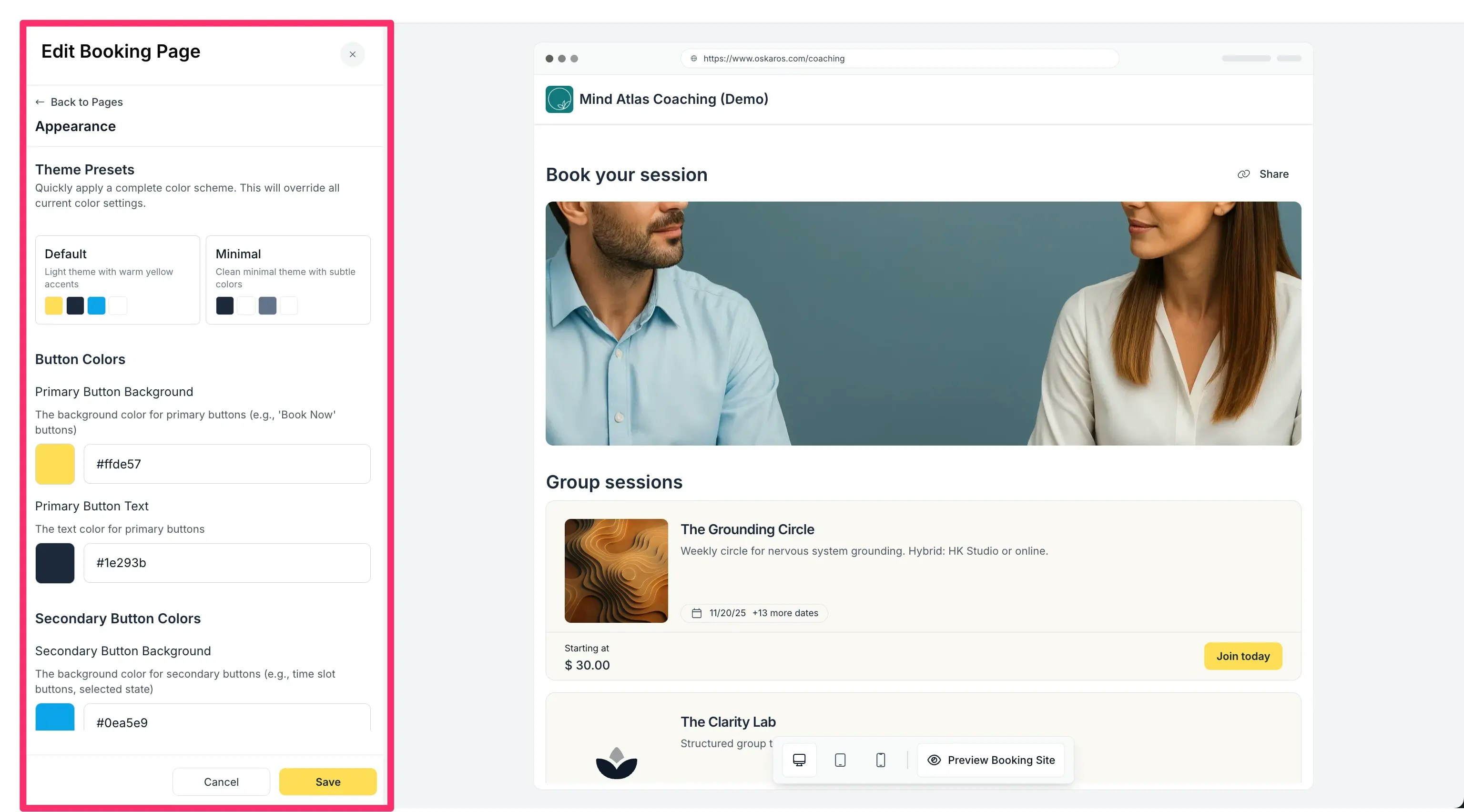
Now with advanced tools: set custom colors for backgrounds, navbars, buttons, cards, and text; select from 50+ font families; add safe custom CSS via a sanitized editor; and apply theme presets with built-in accessibility contrast checks. Preview changes live before publishing.
### Advanced Appearance Editor
Access via **MANAGE → Booking Page → Appearance** for a drag-and-drop interface.
* **Custom Colors**: Use the color picker to set hex/RGB values for backgrounds (#f0f0f0 default), navbars (#333), buttons (#007bff), cards (#fff), and text (#000). Changes apply site-wide.
* **Fonts**: Browse 50+ Google Fonts (e.g., Roboto, Open Sans) via dropdown; preview text samples before applying.
* **Custom CSS**: Enter styles in the editor (e.g., `.button { border-radius: 10px; }`); Oskar sanitizes to prevent layout breaks or security issues.
 ### Section Order
Choose the order in which **Services**, **Events**, or **Resources** appear.\
Highlight what matters most with [**Section Names & Order**](/documentation/booking-page/section-names-and-order).
### Flow
Define how clients move from selection to checkout.\
Use [**Booking Flow**](/documentation/bookings-and-scheduling/booking-flow) to enable multiple bookings, cart functionality, or custom questions.
***
## Sharing Your Page
Access your public link from the **blue link icon** in the top-right corner of your dashboard.
### Options
* **Embed** — Add your Booking Page directly to your website.\
Copy the HTML snippet from [**Embed Options**](/documentation/booking-page/embed-options) and paste it into your site’s HTML.\
Toggle **Hide headers** for a minimal look.
* **Popup Button** — Add a “Book Now” button that opens your Booking Page in a popup.\
Customize button text and colours to match your website.
* **Direct Link** — Share your Booking Page URL by email, social media, or SMS.\
Oskar hosts the page for you — no website required.
* **QR Code** — Download a QR code for print materials such as flyers or business cards.\
Clients scan and book instantly, even on the go.
***
Your Booking Page is fully hosted by Oskar — secure, fast, and reliable.\
You focus on your clients; Oskar handles the rest.
For section ordering and visibility, see [**Show/Hide Items**](/documentation/booking-page/show-hide-items).\
Link these customizations to industry templates for quick setups (e.g., [**Salon Template**](/guides/use-case-templates/salon)).
### Section Order
Choose the order in which **Services**, **Events**, or **Resources** appear.\
Highlight what matters most with [**Section Names & Order**](/documentation/booking-page/section-names-and-order).
### Flow
Define how clients move from selection to checkout.\
Use [**Booking Flow**](/documentation/bookings-and-scheduling/booking-flow) to enable multiple bookings, cart functionality, or custom questions.
***
## Sharing Your Page
Access your public link from the **blue link icon** in the top-right corner of your dashboard.
### Options
* **Embed** — Add your Booking Page directly to your website.\
Copy the HTML snippet from [**Embed Options**](/documentation/booking-page/embed-options) and paste it into your site’s HTML.\
Toggle **Hide headers** for a minimal look.
* **Popup Button** — Add a “Book Now” button that opens your Booking Page in a popup.\
Customize button text and colours to match your website.
* **Direct Link** — Share your Booking Page URL by email, social media, or SMS.\
Oskar hosts the page for you — no website required.
* **QR Code** — Download a QR code for print materials such as flyers or business cards.\
Clients scan and book instantly, even on the go.
***
Your Booking Page is fully hosted by Oskar — secure, fast, and reliable.\
You focus on your clients; Oskar handles the rest.
For section ordering and visibility, see [**Show/Hide Items**](/documentation/booking-page/show-hide-items).\
Link these customizations to industry templates for quick setups (e.g., [**Salon Template**](/guides/use-case-templates/salon)).